Use the editor's documented URL parameters to choose the template, customer identifier and copy behavior.
React and Next.js integration
Embed an image editor in React and Next.js
Add the hosted Pixelixe editor to your application, open an approved template and connect saved designs to your own customer records. This is an iframe integration, not a native React canvas SDK.
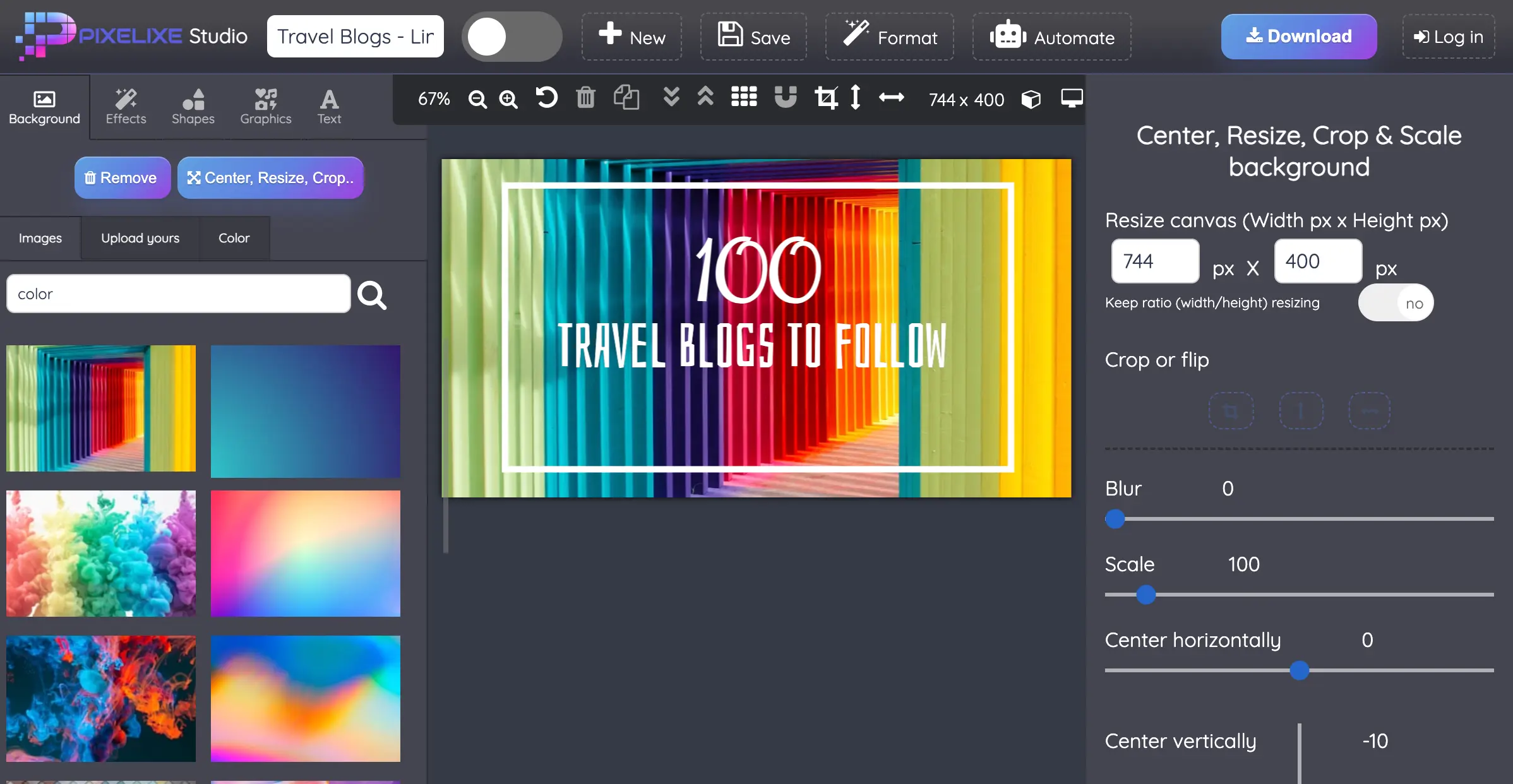
Your app owns the customer journey
React hosts the iframe. Pixelixe provides the editing surface. Your backend receives and associates the saved result.
React renders the iframe, your backend stores the result
Create the iframe URL from your configured editor key and a saved document UID. Use overwrite=false when a customer starts from a master template, receive the saved document through the configured webhook, then reopen the customer's document UID with overwrite=true. Your application's authentication must decide which document each customer can open.
Configure the webhook in Pixelixe and process saved-document delivery on your server rather than reading the cross-origin iframe DOM.
Store the customer copy's document UID and use it for the next editing session instead of reopening the shared master.
Map application state to editor parameters
Derive the document and customer values from authorized application state. URL parameters do not replace your own access checks.
| Parameter | Purpose | Application responsibility |
|---|---|---|
| apiKey | Select the configured Pixelixe editor. | Use the editor key required by your account. Iframe URLs are visible in the browser. |
| document_uid | Open a saved template or document. | Resolve the allowed document on your server before passing it to the component. |
| user_uid | Return your customer reference with the editor result. | Treat it as association metadata, not proof of identity. |
| overwrite | Choose a copy of a template or an update of a saved document. | Start with false for a master template; use true for an authorized customer copy. |
| graphicUrl | Open a remotely stored editable HTML document. | Use a direct accessible URL and the CORS configuration documented by Pixelixe. |
A React component for the hosted editor
Replace the component props with your configured editor key and authorized document and customer IDs. The webhook below is an illustrative payload shape, not a live response from this page.
React component
PixelixeEditor.jsx
import React from "react";

export default function PixelixeEditor({
  editorKey,
  documentUid,
  userUid,
  overwrite = false
}) {
  const params = new URLSearchParams({
    apiKey: editorKey,
    document_uid: documentUid,
    user_uid: userUid,
    overwrite: String(overwrite)
  });
  const src = "https://studio.pixelixe.com/#api?" + params;

  return (
    <div style={{ maxWidth: "100%", overflowX: "auto" }}>
      <iframe
        title="Edit your campaign graphic"
        src={src}
        width="100%"
        height="760"
        style={{ minWidth: 1000, border: 0 }}
        allowFullScreen
      />
    </div>
  );
}
Webhook
Saved-document webhook example
{
  "status": "success",
  "user_uid": "customer_42",
  "document_uid": "CUSTOMER_DOCUMENT_UID",
  "document_name": "Customer campaign",
  "public_png_url": "https://studio.pixelixe.com/storage/file/.../image.png",
  "public_html_url": "https://studio.pixelixe.com/storage/file/.../document.html"
}
Configure the delivery endpoint in your Pixelixe account. The documented editor currently specifies a 1,000 px minimum iframe width; this component keeps the frame scrollable in a narrower host layout. Do not promise native mobile behavior without testing your configuration.
Make the integration behave like a product feature
The iframe is the starting point. These decisions determine whether a customer can finish and resume their task.
Implementation
Open the right template
Choose the approved starting document for the task. Validate access before returning documentUid to the browser, and avoid exposing unrelated server secrets in the iframe URL.
Implementation
Keep customer copies separate
Use overwrite=false for a new design based on the master. Persist the document UID returned for the customer copy instead of assuming it is still the template UID.
Implementation
Receive completion on the server
Handle the configured webhook and validate the expected fields and customer association. A JSON body alone is not evidence that a request is authentic; confirm endpoint authentication for your integration.
Implementation
Resume an existing design
Fetch the authorized saved UID from your backend and reopen it with overwrite=true. Reload your own saved state to show the latest export after completion.
Implement the edit and save journey
Test this path with a staging configuration and an authorized sample customer before adding more templates.
Step 1
Configure the hosted editor
Set branding, available controls, completion behavior and the delivery endpoint in your Pixelixe account.
Step 2
Render an authorized template
Pass the editor key, template UID and customer reference to PixelixeEditor. Start a customer copy with overwrite=false.
Step 3
Persist the saved result
Process the configured webhook and store document_uid, output URLs and the validated customer association on your server.
Step 4
Reopen the customer copy
Reload the saved document UID from the backend and open it with overwrite=true for the next editing session.
Use the component in Next.js
Keep the editor component behind a client boundary. The parent route should resolve customer access before supplying props.
EditorClient.jsx
"use client";

import PixelixeEditor from "./PixelixeEditor";

export default function EditorClient(props) {
  return <PixelixeEditor {...props} />;
}
The wrapper demonstrates the client boundary. Add your application's authentication, loading and delivery state in the surrounding route. It does not require a separate Pixelixe Next.js SDK.
Troubleshoot the integration boundary
Check the documented contract before trying to manipulate the hosted editor from React.
| Symptom | What to check |
|---|---|
| The editor opens the wrong design | Confirm document_uid and whether the app selected the master template or the saved customer copy. |
| A save is missing from the app | Check webhook configuration, endpoint response and persistence before changing the iframe component. |
| The host layout is narrower than the editor | Plan for the documented minimum width or use a dedicated editing view; test the actual target devices. |
| React cannot read editor elements | The iframe is cross-origin. Use documented delivery and integration mechanisms, not DOM access. |
| A remote HTML design does not open | Check the direct graphicUrl, URL encoding and CORS response headers. |
Integration references
Parameters and webhook fields follow the Pixelixe v2 documentation. Example identifiers and output URLs are illustrative. Technical references checked 20 October 2026.
Related Pixelixe workflows
Use these connected pages to evaluate the implementation path, adjacent use cases, and Pixelixe product fit.
FAQ
Can I use Pixelixe in a React app?
Yes. Render the hosted editor in an iframe and connect its documented URL parameters and webhook delivery to your application.
Is this a native React image editor SDK?
No. React hosts the Pixelixe iframe; it does not own the editor's internal components or canvas state.
How does this work in Next.js?
Place the editor component behind a use client boundary and supply the permitted editor configuration and document identifiers from your application's route and authentication logic.
How do I know when a customer saved a design?
Configure Pixelixe's documented webhook delivery and process the saved-document payload on your server. This example does not invent a browser postMessage save event.
Can I use user_uid to authorize access?
No. It is an association field. Your app must authorize the customer and document using its own server-side records.
Can I open the same design again?
Yes. Store the customer document UID and reopen it with the documented update behavior. If you store editable HTML yourself, use the graphicUrl path with appropriate CORS headers.
Connect the editor to one customer journey
Start with one approved template, one authorized customer and one saved result. Then expand the integration to the rest of your product.