
6 Best Lyric Video Makers for Your Next Release
Your song is finished, and now you need a video that gives people a reason to watch as well as listen. The best lyric video maker for you depends on what’s missing: readable words, better timing, a clear design, or original footage. These six tools handle different parts of that job, from correcting automatically generated lyrics to developing a visual story around a track.
How to Choose a Lyric Video Maker
Check how lyrics get into the editor. You might want manual text entry, subtitle uploads, or automatic transcription. Look for controls that let you adjust when each line appears and how long it stays visible. Fonts, placement, animation, and contrast matter when people are reading on a phone.
Also check the export limits for video length, resolution, watermarks, and paid features. Keep timing in mind as you compare tools: matching cuts to musical beats and matching words to the vocal are different jobs.
1. VEED for Starting With Automatic Lyric Captions
VEED works well if you already have a finished track and a few images or clips. Upload the song and add lyrics through its automatic subtitle tool, or enter them yourself. You can then work with the text alongside your visual material.
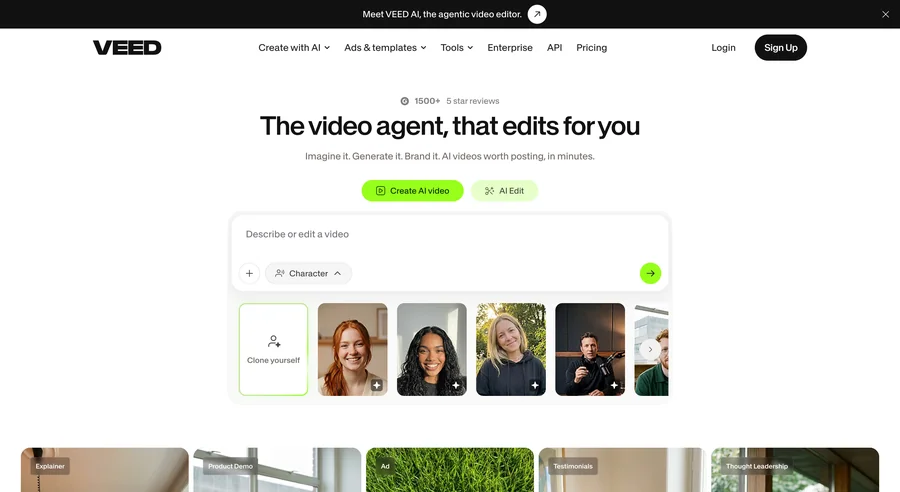
Play the recording while reviewing the lyrics. Repeated phrases, names, and backing vocals can need corrections. VEED lets you edit the subtitle text and adjust when lines appear and disappear, so you’re able to work through a verse without relying entirely on the first transcription.
Once the words and timing are in place, change the font, colors, position, and animation. Combine the lyrics with footage, still images, or a music visualizer. This suits an artist who wants to turn an existing song and a small set of assets into a lyric video.
2. Kapwing for Reviewing and Editing With a Team
Kapwing is useful when several people need to review and edit the same lyric video. Shared workspaces keep the project accessible to the team, and comments let people leave feedback on the video itself. Team members can also edit together instead of passing separate copies around.
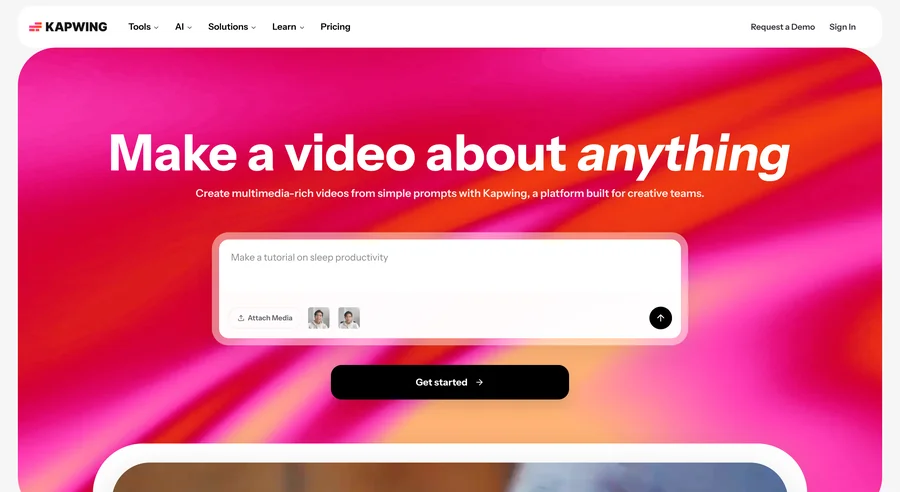
An artist might check the lyrics against the recording while a designer reviews the text and backgrounds. A release manager can then check the finished version. Keeping that feedback attached to the project makes it clearer which changes people are discussing.
You can enter lyrics manually or generate subtitles from an audio or video upload, then adjust the wording, style, placement, and timing. The main reason to choose Kapwing here is its shared editing and review process, particularly when approval involves more than one person. Available collaboration features depend on the plan.
3. Canva for Building From a Ready-Made Design
Canva suits creators who know the look they want but would rather adapt a design than build it from scratch. Its lyric video templates provide a starting point for backgrounds, typography, layouts, and colors. Choose one that leaves enough room for the words to stay readable.
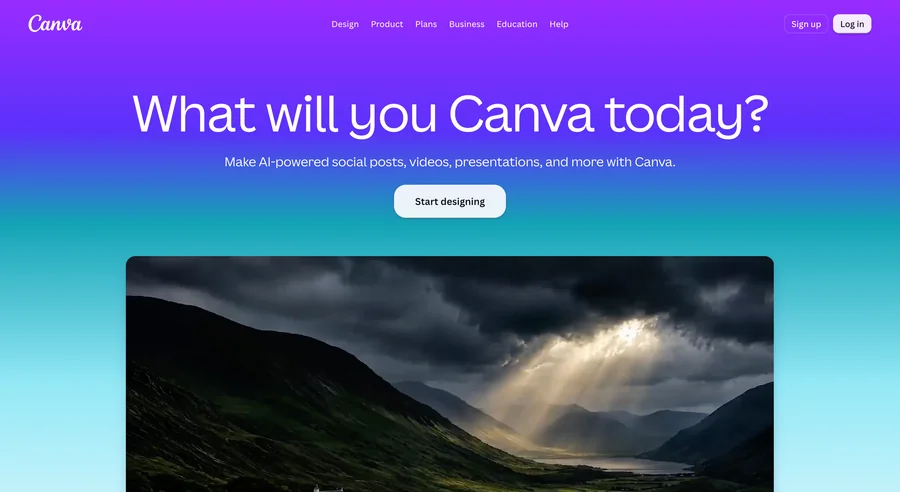
Upload your track, enter the lyrics, and adjust page or clip lengths around the vocal. You can replace backgrounds, add graphic elements, and animate text as you develop the design. For a song with a recurring chorus, reusing a layout can give those sections a familiar look.
The template helps with presentation, while lyric placement and timing still need attention. Treat Canva’s Beat Sync as a way to edit footage to the rhythm. Align the lyric text with the vocals separately so a strong visual beat doesn’t distract from words appearing at the wrong moment.
4. Adobe Express for Keeping Fonts and Branding Consistent
Adobe Express fits releases that already have a clear visual identity. Use the fonts, colors, artwork, and logo from the cover design to give the lyric video a similar look. Customizable templates can help carry that style into other material for the release.
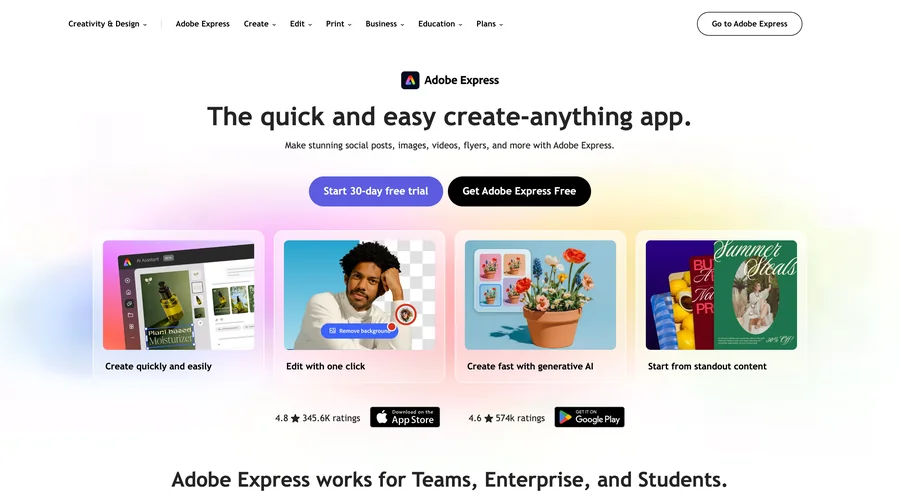
Add lyrics as text, apply animation, and trim or combine footage around the song. You might use the cover artwork as a background, then bring in short clips or graphic elements as the track develops. The aim is a video that feels connected to the artist’s social posts and promotional images.
Brand Kits keep approved design assets together, which can be useful when several videos belong to the same campaign. Check which brand features are included in your plan. Adobe Express is a practical choice when keeping the release visually consistent matters more than starting with a completely new design.
5. Flova for Developing Original Lyric Video Visuals
Flova suits artists who still need original visuals for a song. Start with its mood, themes, and a few images that capture the look you want. Talk through the direction with Flova Agent, then develop a storyboard that gives each scene a place in the project.
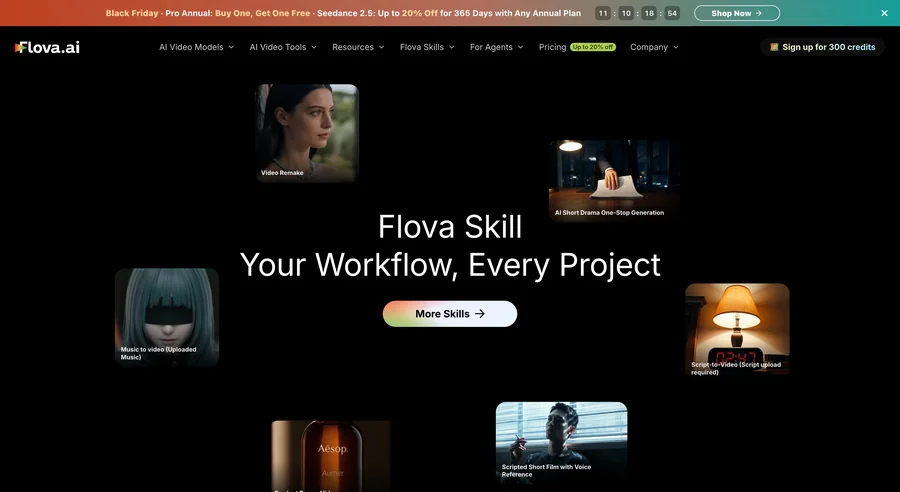
Those ideas could become an animated landscape, abstract imagery, or a short story inspired by the track. Generate the scenes and review how they work together. If one shot feels out of place, ask for a change to its setting, camera movement, or atmosphere while continuing with the wider project.
This approach gives you room to explore lyric video visuals beyond the footage you already have. For an artist with a specific visual idea, the appeal is being able to develop that idea through conversation and refine individual shots as the direction becomes clearer.
6. Flixier for Arranging Lyrics and Media on a Timeline
Flixier suits creators who want to arrange lyrics, footage, images, and audio directly on a timeline. Seeing those layers together helps you work out which background should accompany a line and where the next visual change belongs.
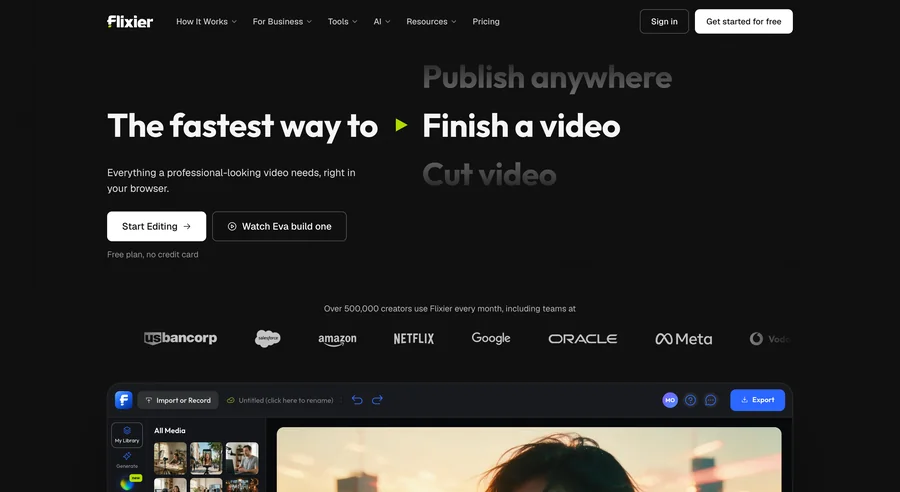
Add text manually or use automatic transcription as a starting point. You can edit the words, adjust how long they remain visible, and change their styling, animation, and placement. Work through the song with the text and media visible together so you can assess their relationship as you edit.
For example, a chorus might use a sequence of atmospheric shots while the lyrics move between positions on screen. Adjust the clips and text until the sequence feels right. This approach is useful when you expect to keep changing the relationship between the words and the background footage during the edit.
Choose Based on the Job You Need to Finish
If you already have background footage, focus on lyric entry and timing controls. Try a verse with repeated phrases or backing vocals to see how much correction your song needs.
If animated text is the main attraction, compare fonts, movement, placement, and control over individual text elements. Watch the result at the size people will actually see it, especially on a phone.
If the footage is still missing, look at reference support, scene development, and revision options. Choose around the work you need to finish. A tool that fits that task is more useful than a broad feature list you’ll barely use.
Reuse the artwork for release day
Choose a frame where the track title is readable without the audio. Keep the original artwork and typeface, but give the cover image, release date, and call to action their own editable fields. For a square announcement, crop the artwork first; for a vertical teaser, leave room around the title so it stays visible under the player controls. A creative repurposing workflow lets you update the release date once across these graphics without reopening the finished video.
Frequently Asked Questions
Can I use automatically generated lyrics without checking them?
No. Review names, repeated lines, backing vocals, and unfamiliar words against the recording. Check where each phrase starts and ends as well. Transcription gives you a draft to correct.
Is beat syncing the same as lyric syncing?
No. Beat syncing follows the music’s rhythm. Lyric syncing controls when the sung words appear on screen. A video can follow the beat while displaying a lyric line too early or too late.
Can I make a complete lyric video with a free tool?
Possibly, depending on the tool and the features you use. Free access can come with limits on video length, resolution, or watermark removal. A paid asset or export option may require an upgrade even when the editor itself is free.
Start with one verse or chorus. Use it to test the part of production you need help with, then check the export options before building the full video.