
If your photos suddenly disappeared after accidental deletion, a failed transfer, or a corrupted drive, the situation usually calls for fast action. In cases like this, the right photo recovery software helps restore images before deadlines slip and projects stall.
Here, we break down tools that actually restore photos and fit real design, marketing, and business workflows.
Marketing Risk Management
Modern marketing operations face multiple layers of risk.
In creative automation and marketing environments, asset loss often comes from everyday operations: batch exports, automated renaming, CMS uploads, sync conflicts, or permission changes in shared storage. A single mistake can wipe out thousands of processed images, campaign variations, or product visuals (often without immediate detection).
Cloud platforms and SaaS tools reduce friction, but they don’t eliminate risk. Sync tools mirror deletions just as efficiently as they mirror updates. Platform outages and service errors can lock teams out of asset libraries at a critical time.
Backups help, but they don’t always capture the latest production state or automated outputs. This is the point where photo recovery stops being “nice to have” and becomes part of keeping operations running. Recovery tools allow teams to restore lost or deleted images after failures that backups and cloud sync can’t resolve. That includes raw photos, processed outputs, resized variants, and exported assets already in production use.
And this is not a problem limited to small teams or early-stage businesses. Here are some well-documented incidents that show how quickly things can escalate:
Uber’s reputation suffered after hackers stole internal company files. The event led to legal trouble and showed weak security controls to the public.
Meta lost about $60 million when its platforms had a 6-hour global outage. The halt also stopped revenue and communication for millions of small businesses that use these apps to operate.
As you can see, no team (regardless of size) is immune to data loss. With that in mind, let’s look at the tools that can actually help restore lost images and keep creative and commercial workflows moving:
The Сriteria We Used to Evaluate Photo Recovery Software
Before moving to the list, it helps to explain how we approached the evaluation. The goal was not abstract testing. We wanted to see how photo recovery software behaves when images belong to real marketing, design, or commercial workflows. Not isolated cases. Real interruptions. The criteria below reflect situations teams actually face when photo loss hits active Windows-based projects.
Our review results. We tested each photo recovery tool against common loss scenarios, including accidental deletion, formatted storage, and damaged media. What mattered most to us was simple: how many images were returned in usable condition. Files that opened correctly carried far more weight than long scan lists filled with broken previews.
Usability. Recovery software often turns into a bottleneck when the interface creates friction. Here, clarity mattered. We paid attention to how easy it was to select storage, start scans, review found images, and finish recovery without second-guessing each step. Tools that felt manageable without a technical background work better for creative teams.
Extra features. Small details shape real outcomes. We looked closely at image previews before restoration, file-type filters, and scan control options during everyday use. These features proved useful when time pressure limited trial-and-error or when large image sets required selective recovery instead of full restores.
Price. Cost mattered only in the context of real use. We compared free limits, trial restrictions, and license models to understand whether a tool supports repeated business tasks or only one-off situations. Pricing that allowed proper testing before commitment counted as a clear positive in our view.
File format support. Marketing and design work rarely relies on one image format. During testing, we checked how reliably each tool handled PNG, TIFF, layered files, and RAW formats from photoshoots. Broader format support increased the chance that recovered images could return directly into production.
Scan speed and stability. Image loss often involves high-capacity drives or memory cards. We observed tool behavior during longer scans to see whether performance stayed consistent, interfaces remained responsive, and results loaded without interruptions.
The 5 Best Photo Recovery Programs to Get Back Lost Images
Here are five photo recovery tools that can help with common image loss problems on Windows. Each option here was selected for stable results, clear recovery output, and practical use when working with marketing and design assets.
1. Disk Drill
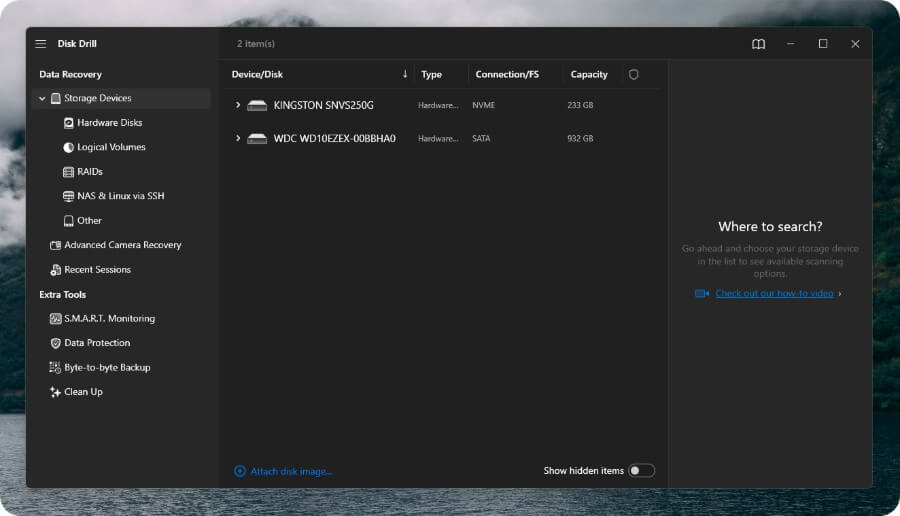
Disk Drill Photo Recovery is commonly used when image loss affects active projects, such as formatted external drives or SD cards reused after a shoot. In practice, it handles common photo formats like JPG and PNG, along with many RAW files from major camera brands, which makes it suitable for commercial image workflows where file integrity and preview accuracy matter.
The application is available for both Windows and macOS and includes additional features that simplify recovery.
Key advantages:
Disk Drill supports over 390 file formats for recovery.
Support for video and image formats extends to a wide range of RAW files from major camera brands through Advanced Camera Recovery.
Image previews for recoverable photos make it easier to confirm content before restoration.
Scans remain stable on SD cards, USB drives, external HDDs, and SSDs without manual configuration.
Byte-to-Byte Backups allow work with disk images instead of live storage, which reduces risk during recovery from unstable media.
One-time license options make the tool suitable for teams that expect recurring recovery tasks.
Price: Disk Drill offers a free version with basic scanning and limited recovery to check whether images can be restored. The PRO license is available as a one-time purchase for $89.00 and unlocks unlimited recovery on both Windows and macOS.
Pros:
Works well with mixed image libraries that combine standard formats and professional RAW files.
Preview mode helps narrow recovery to usable shots instead of restoring full folders blindly.
Keeps scan output structured even when dealing with large volumes of images across multiple storage devices.
Cons:
- The free Windows version has a 100 MB data recovery limit, which may not be sufficient for large image libraries or full photoshoot folders.
Our take after hands-on use: After multiple tests on SD cards and external drives, the results stayed great. With that in mind, it’s easy to see why Disk Drill appears so often in reviews and discussions on forums like Reddit, including threads that cover real recovery cases. In our tests, Disk Drill demonstrated the highest recovery rate among the tools evaluated.
2. PhotoRec
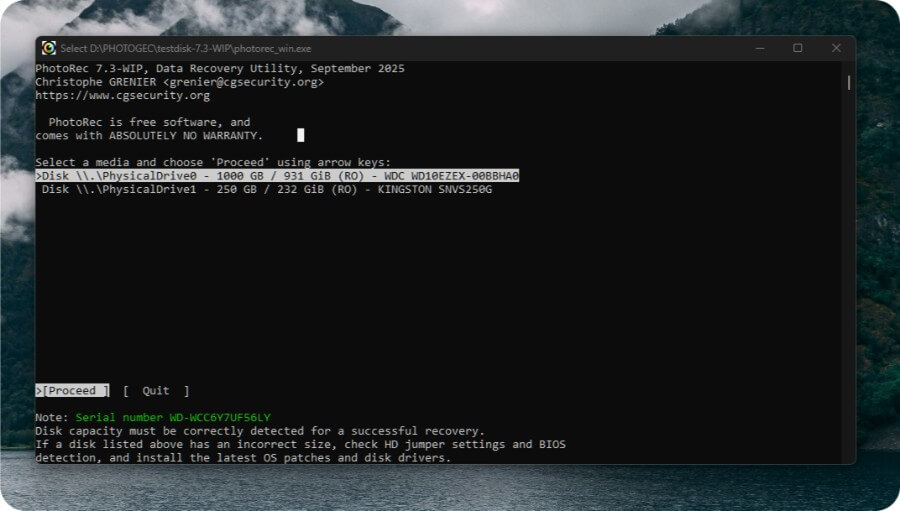
PhotoRec is often used as a deleted photo recovery software when images disappear after formatting or serious file system damage. Unlike many other tools, it relies on signature-based scanning and usually runs through a command-line workflow, which can feel unfamiliar for most users. Because of that, practical references like a guide on recovering lost photos from a memory card become almost necessary.
The tool supports over 480 file types, including many image and RAW formats, and works well with SD cards and other removable media used during photoshoots.
Key advantages:
This photo recovery tool uses low-level signature scanning, which lets it restore pictures even when partitions or file systems can’t be read anymore.
It works with over 480 file types, including standard image formats and a lot of RAW files from cameras.
Runs as a portable application without installation.
Price: There are no paid versions, subscriptions, or limits on how much data PhotoRec can recover. It is free and open-source.
Pros:
Allows for unlimited recovery, which is helpful when restoring full photo shoots or archive folders.
Works well on older systems.
Cons:
Recovered images do not retain original names or folder structure, which increases sorting time.
The interface feels technical and may slow down users without prior recovery experience.
Our take after hands-on use: While it requires extra time to sort results, the depth of recovery solidifies its position as the best photo recovery software when the priority is to retrieve as much image data as possible, rather than opting for convenience.
3. DiskDigger
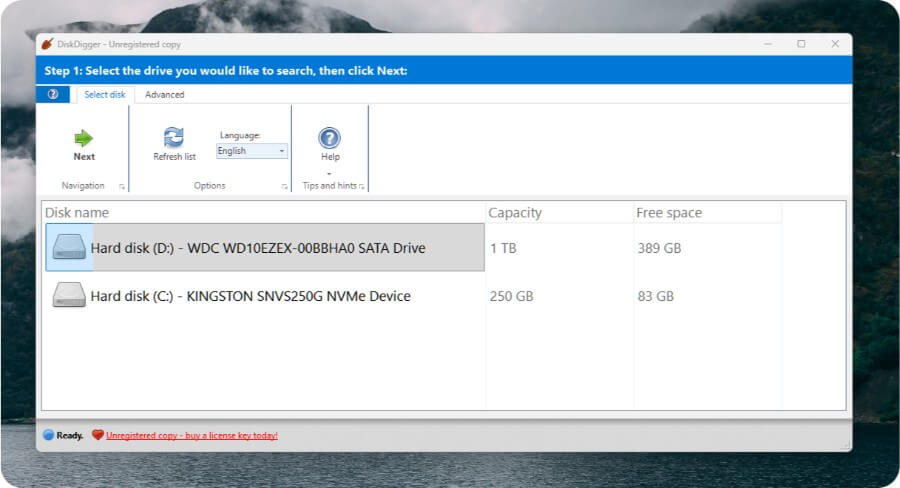
DiskDigger is a lightweight tool for recovering images that works best when images were deleted recently, and storage wasn’t heavily reused. It works with hard drives, USB flash drives, memory cards, and disk image files. It can run on Windows 11 through Vista and Linux. From our tests, preview-based recovery and EXIF data for JPG and TIFF files make it especially useful for quick image checks on mixed storage, which is why we often recommend it as a first step before deeper recovery tools.
Key advantages:
Provides thumbnail and full-image previews with zoom and pan for photo files.
Displays EXIF information for JPG and TIFF images, helping identify photos by capture data.
Works with a wide range of storage media readable by Windows, including memory cards and USB drives.
Can scan disk image files like VHD, VMDK, VDI, and raw binary images.
It works as a lightweight, portable app that doesn’t need a lot of setup, making it great for quick recovery checks.
Price: DiskDigger has a personal license that costs $14.99. This license gives you full access to all the features without needing to pay for a subscription. It also comes with a 30-day money-back guarantee.
Pros:
One-time license that is less expensive than most photo recovery tools.
Clear preview options make it easier to select specific images.
Supports disk image files often used for backup or testing.
Works across a wide range of Windows versions, including older systems.
Cons:
Recovery depth is limited for formatted or heavily overwritten storage.
RAW format coverage and advanced reconstruction are more limited than deeper recovery tools.
Our take after hands-on use: When tested on recently deleted photo folders and lightly reused memory cards, DiskDigger delivered fast results and clear previews with minimal effort. It works well as a first-response option for simple cases, while more complex data loss usually calls for deeper scanning tools.
4. EaseUS Data Recovery Wizard
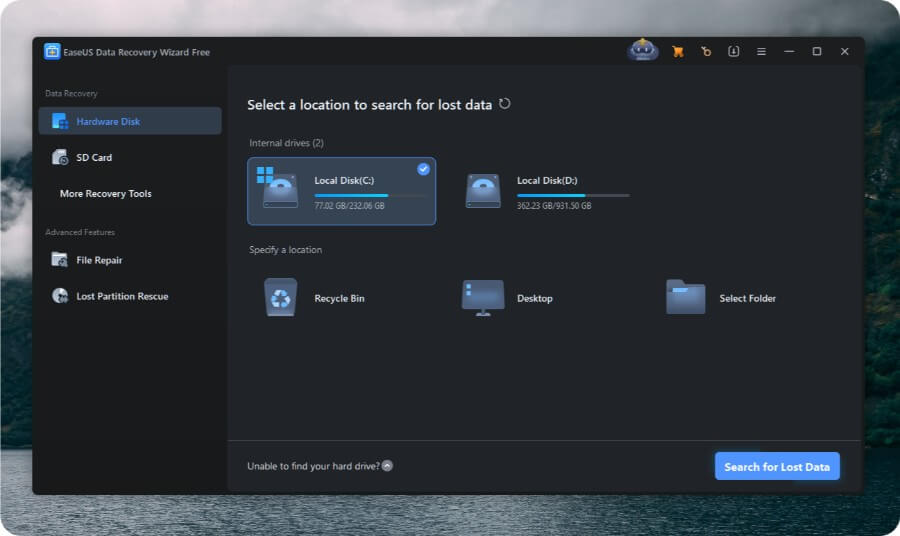
EaseUS Data Recovery Wizard is made for situations where you lose images and need them back quickly and clearly. The free version lets users recover up to 2 GB on Windows 11, 10, 8, and 7. This is enough to check if deleted pictures from SD cards, USB drives, HDDs, or SSDs can really be recovered. Preview support and basic repair for partially damaged photos add practical value during early recovery attempts.
In testing, the tool handled deletion, formatting, and system-related losses well, while keeping the process straightforward. That makes it a practical choice for marketers and designers who want a clear, step-by-step flow without touching technical settings.
Key advantages:
It’s nice that the free version lets you recover 2 GB, which is usually enough to see real results before you make a choice.
It works with the most common storage devices, such as SD cards, USB drives, HDDs, and SSDs.
You don’t have to restore everything to find the images you really need with file preview.
You may use the photo repair feature if your files are only slightly corrupted.
The process is divided into small steps, which keeps the recovery process nice and predictable and also easy to follow, even if it is your first time.
Price: EaseUS has a free plan with a 2 GB limit for recovery. The PRO edition costs $69.95 and eliminates all limitations while also providing additional recovery and repair features suitable for the most demanding cases.
Pros:
Simple interface and easy to follow, even for a person with no prior recovery experience.
Preview makes it faster to spot the right images.
The free version allows real testing instead of a locked demo.
Works reliably with storage devices used in everyday workflows.
Cons:
The 2 GB limit is restrictive for large photo libraries.
Deep recovery on heavily damaged storage is not its strongest area.
Our take after hands-on use: EaseUS fits best when photo loss is recent, and the goal is a quick, clean recovery with minimal effort. It works well for routine cases, while more severe damage usually calls for tools built around deeper, low-level scanning.
5. Recuva
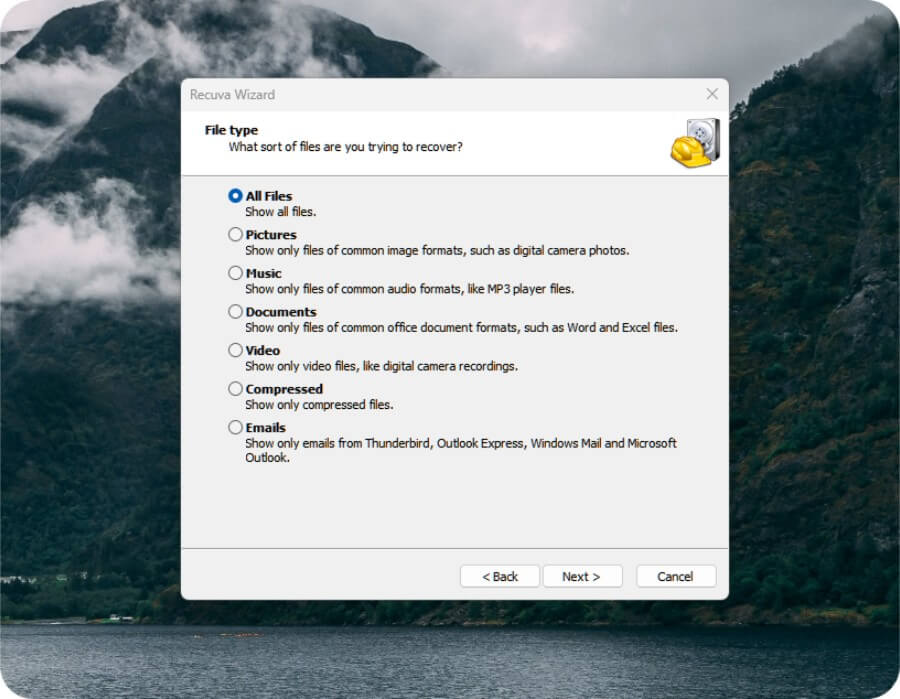
Recuva is a photo recovery tool from the team behind CCleaner, built for fast checks rather than deep recovery. It’s usually used when images were deleted recently. The software works with memory cards, USB drives, and external hard disks, and includes a deep scan for basic deletion or formatting cases, where timing plays a key role.
In addition, Recuva offers secure overwrite for files that must stay permanently deleted, which makes it useful for both quick recovery attempts and storage cleanup.
Key advantages:
Recover data from removable storage such as memory cards, USB sticks, and external drives.
Provides a deep scan feature that can help to find the files that are missing after the quick scans.
Allows preview of recoverable images before restoration.
Offers secure file deletion for cases where data must stay erased.
Price: Recuva is available in a free version for standard recovery tasks. The Professional version costs $24.95 per year and adds virtual hard drive support, automatic updates, and priority support. A bundled CCleaner Professional Plus option is also available.
Pros:
The free version is enough for basic photo recovery.
Very simple interface with minimal setup.
Affordable upgrade compared to many recovery tools.
Cons:
Recovery success drops quickly after storage reuse.
Limited effectiveness on heavily damaged or overwritten media.
RAW format support is basic.
Our take after hands-on use: Recuva fits low-risk scenarios where simplicity matters more than depth. The interface stays minimal, setup takes almost no time, and the tool avoids overwhelming users with extra options. This makes it suitable as a lightweight fallback rather than a primary recovery solution for complex photo loss cases.
Conclusion
At this point, we can say that Disk Drill stands out as the best image recovery software for most professional use cases today. It offers a strong balance between recovery depth, preview accuracy, and predictable behavior, which matters when images support active work. For design teams, e-commerce projects, and marketing workflows, Disk Drill makes the most sense as a first choice.
That position does not reduce the value of other tools. Each alternative serves a clear purpose. EaseUS Data Recovery Wizard fits structured business environments where guided steps and broad storage support help teams stay efficient. DiskDigger works well for simpler recovery cases where speed outweighs advanced logic. Recuva and PhotoRec, despite their limits, remain fully free options that often resolve common photo loss situations, even if they lack the refinement required for commercial workloads. And once you recover all your photos, use services such as WallPics to print tiles and frames.