On this page
Before you start
Use this guide when your ChatGPT environment exposes custom MCP apps or connectors. This page is intentionally cautious, because OpenAI's MCP rollout depends on plan, role, and workspace settings.
Pixelixe MCP endpoint
Authentication
Prefer OAuth when ChatGPT opens the Pixelixe sign-in and consent flow. If your UI instead supports a stored credential, use your Pixelixe API key as a Bearer secret inside the connector settings.
https://studio.pixelixe.com/api/mcp/v1Authentication
Prefer OAuth when ChatGPT opens the Pixelixe sign-in and consent flow. If your UI instead supports a stored credential, use your Pixelixe API key as a Bearer secret inside the connector settings.
Availability and plan caveats
- OpenAI documents full MCP support, including write and modify actions, as a beta rollout on ChatGPT Business and Enterprise/Edu on the web.
- OpenAI also documents that Pro users can connect MCPs with read and fetch permissions only in Developer Mode.
- OpenAI's docs describe remote MCP servers only. Local MCP servers are not supported in ChatGPT.
- Use ChatGPT web for setup and testing. Do not treat mobile as the target setup surface.
Setup steps
- Confirm your plan and role can use Developer Mode for apps or MCP connectors. On Business and Enterprise/Edu, this usually depends on admin or owner settings first.
- Open the ChatGPT web area for Apps or Apps & Connectors, depending on the current UI label in your workspace.
- Create a new custom app or connector based on an MCP endpoint.
- Enter
https://studio.pixelixe.com/api/mcp/v1as the MCP server URL. - Choose OAuth if ChatGPT offers a Pixelixe sign-in flow. If the UI instead supports a stored credential, choose Bearer and save your Pixelixe API key in the secret field.
- Finish the setup flow and authenticate if prompted.
- Open a new chat and select the Pixelixe app or connector from the tools menu before testing.
- After a future Pixelixe MCP update, use ChatGPT's Refresh action to fetch new tools or changed tools. OpenAI documents that new actions are disabled by default and shown as a diff for approval.
Visual walkthrough
The screenshots below follow the current ChatGPT web flow for enabling Developer Mode and adding the Pixelixe MCP server.
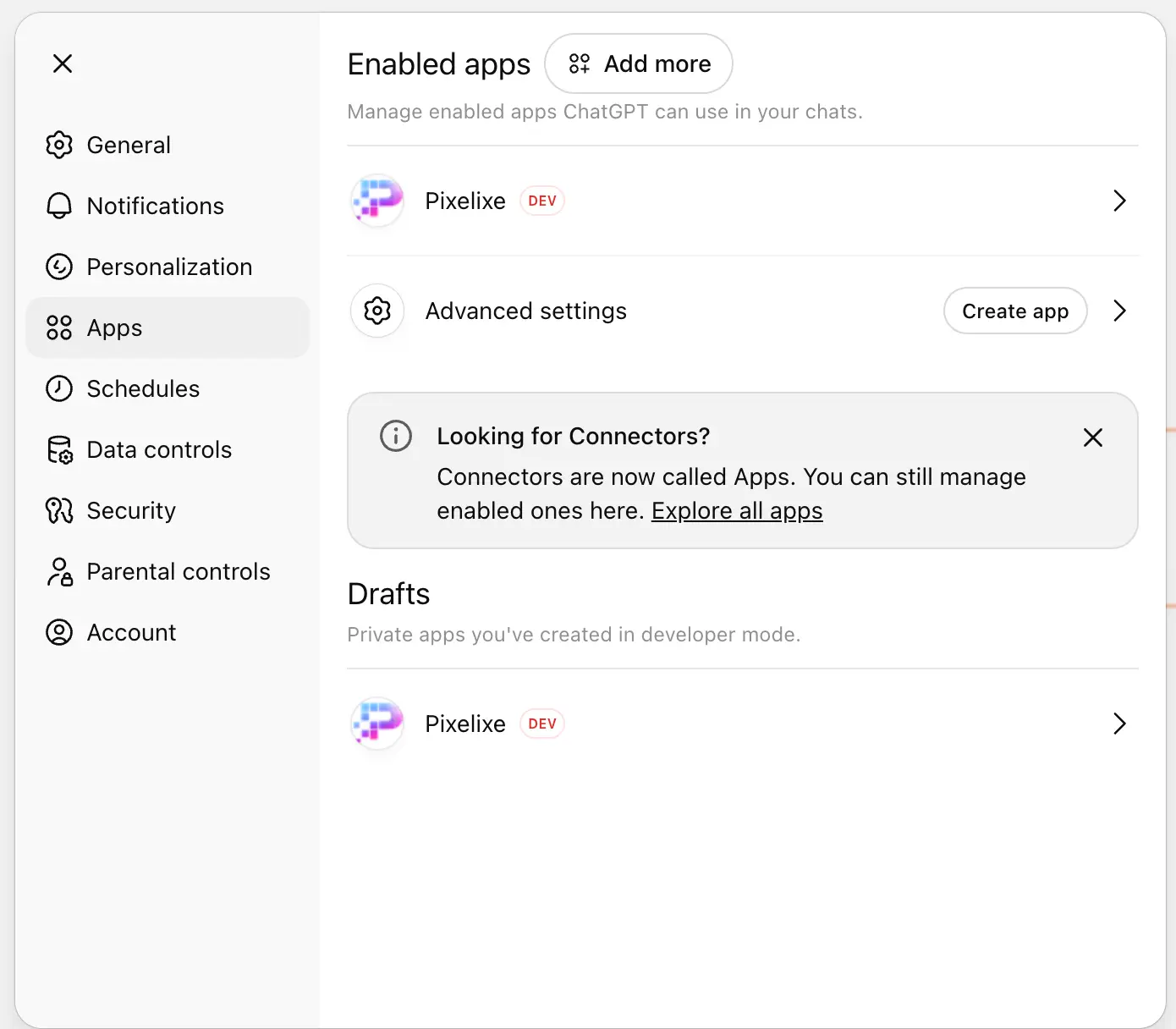
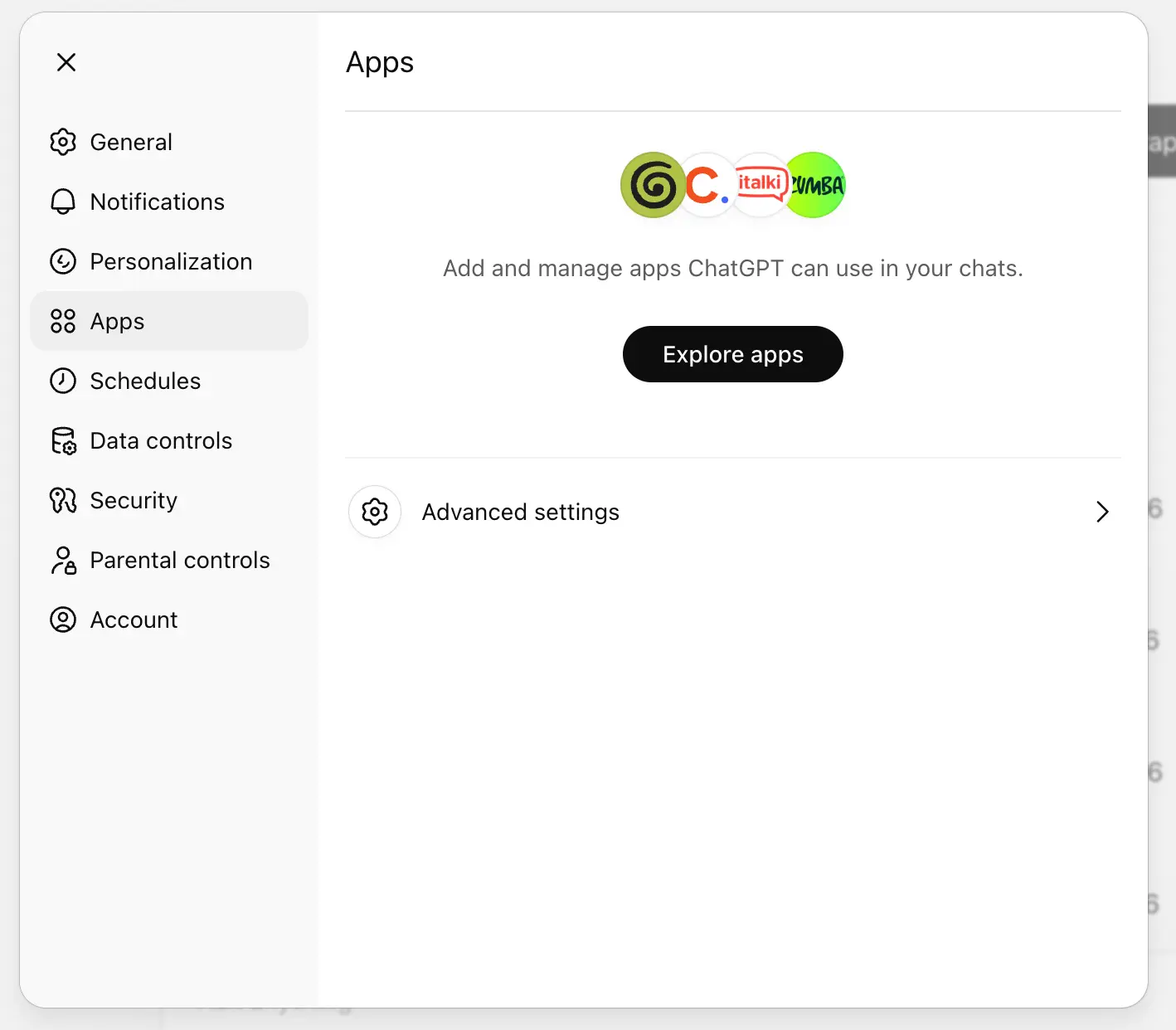
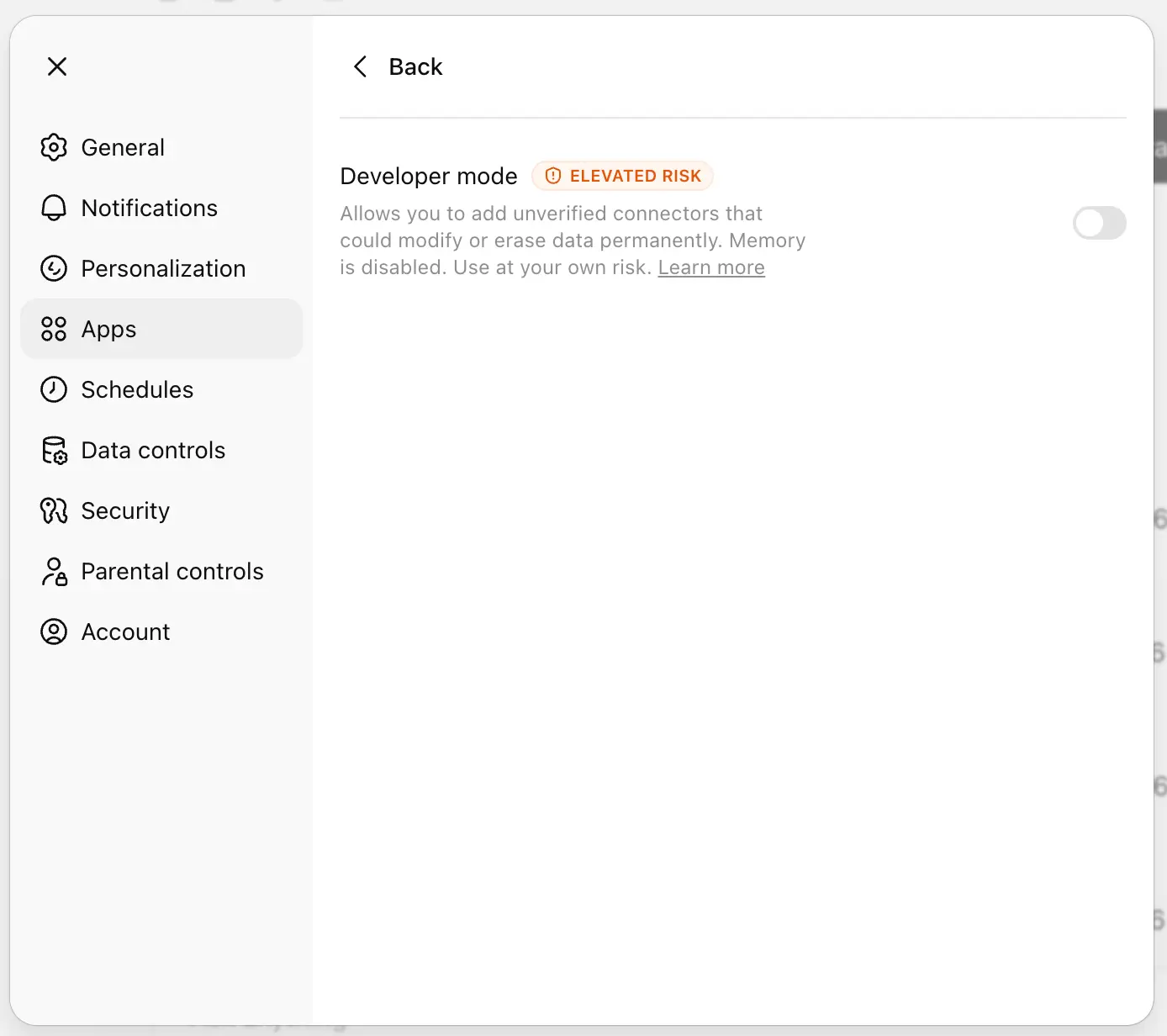
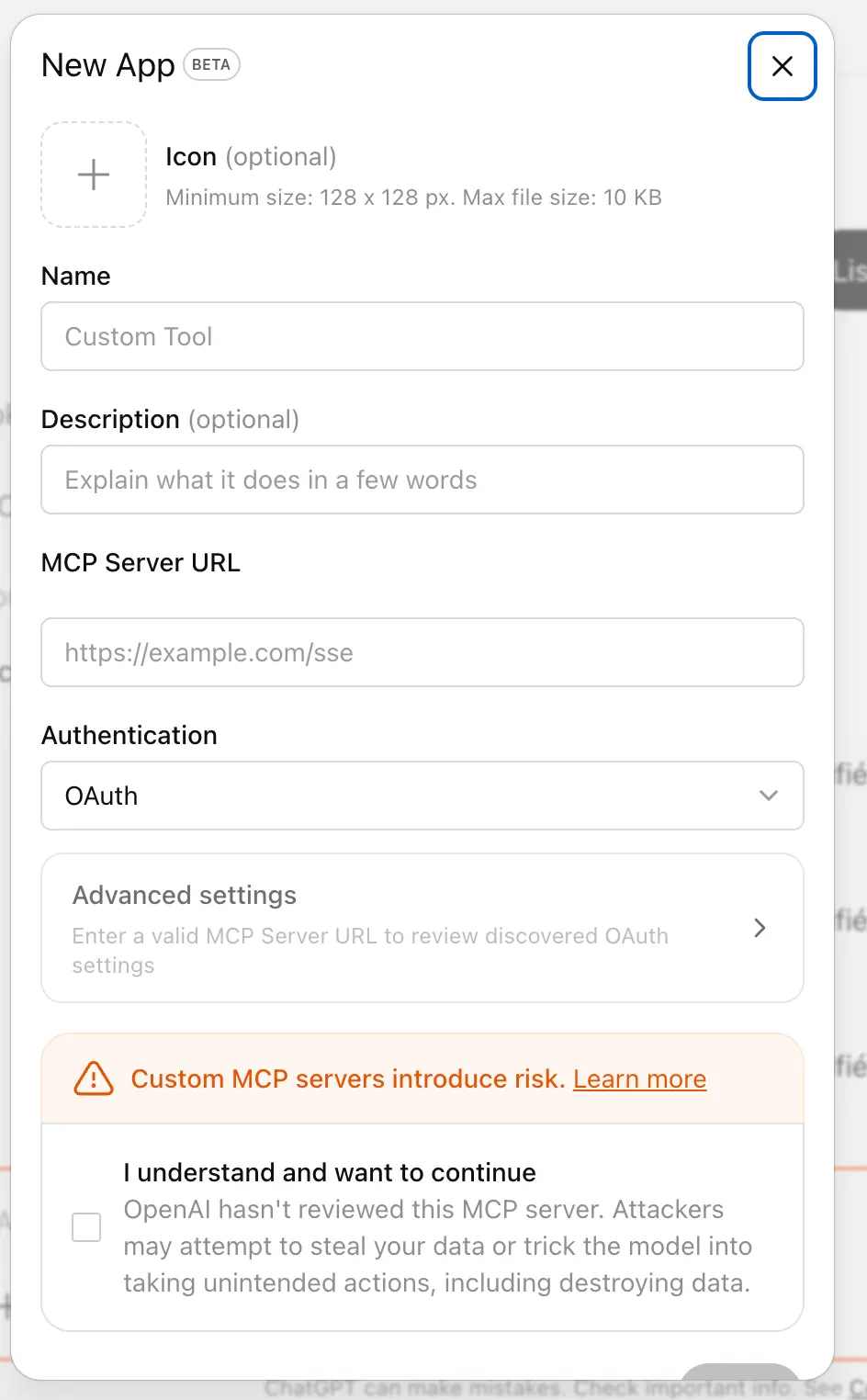
https://studio.pixelixe.com/api/mcp/v1.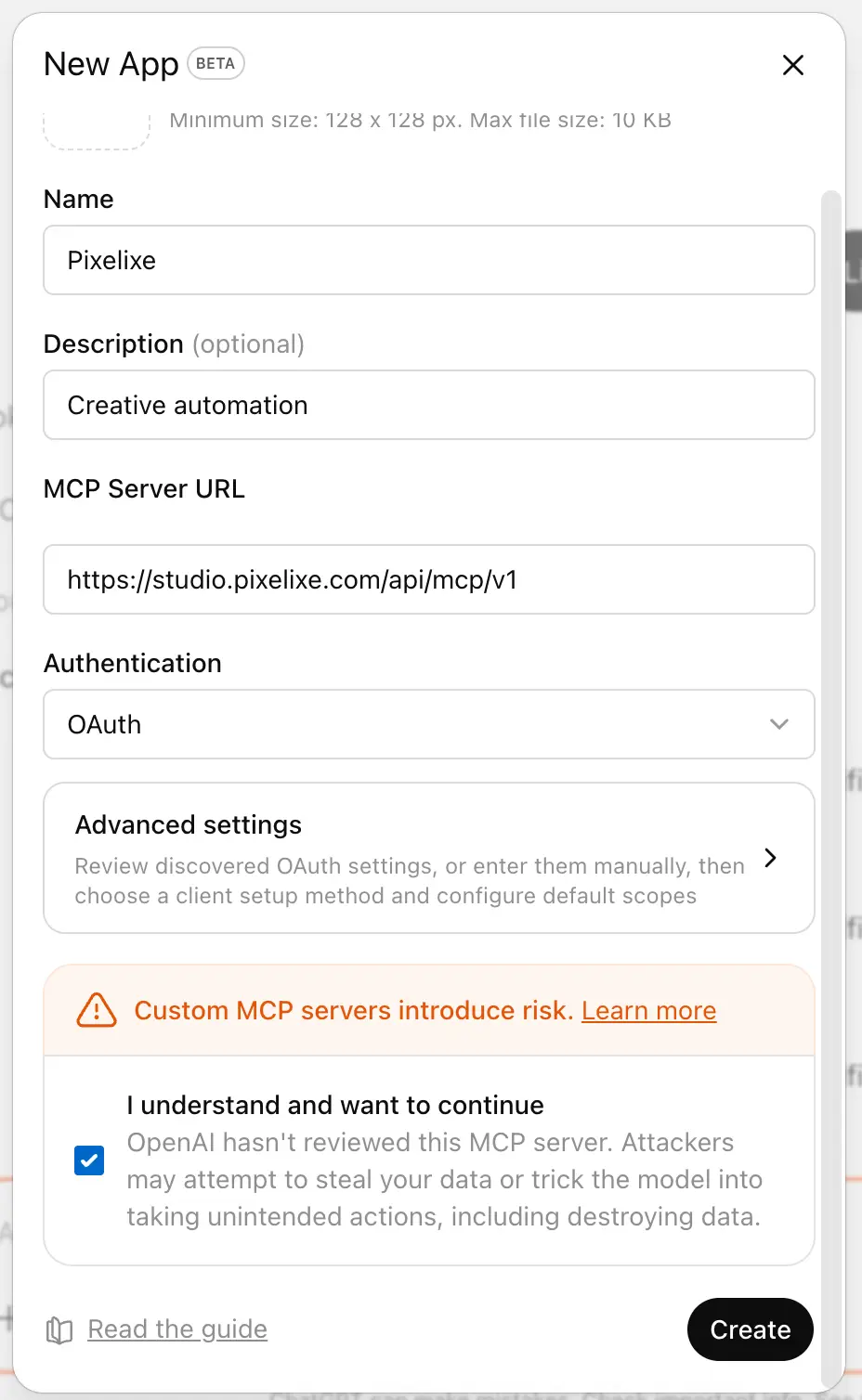
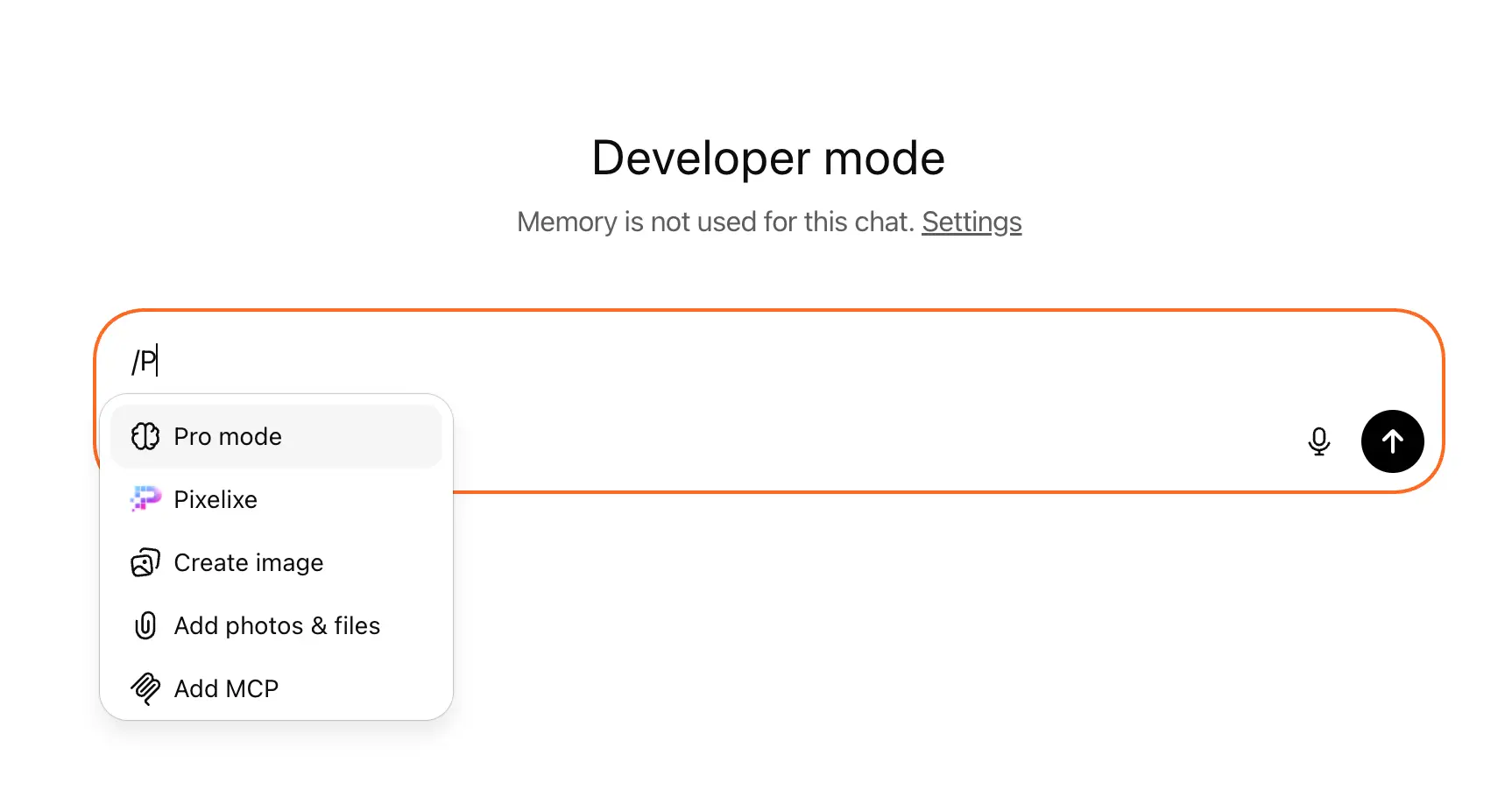
First test
Start with a read-only request so you validate setup without generating a new asset yet.
Use the Pixelixe connector only. First call pixelixe_get_tool_docs for pixelixe_search_documents, then search my saved documents and summarize the results in plain language.
That confirms the connector is live, the tool list is current, and ChatGPT is using the structured presentation data returned by Pixelixe.
Troubleshooting
- If you do not see any app, connector, or Developer Mode UI in ChatGPT, the feature may not be enabled yet for your plan, role, or workspace.
- If a newly deployed Pixelixe tool does not appear, use ChatGPT's Refresh action for the connector and then start a new chat. Existing chats often keep an older tool snapshot.
- If ChatGPT keeps asking for a secret in the prompt, your credential was not stored in the connector configuration. Remove that secret from the conversation and reconfigure the connector.
- If OAuth fails, restart the Pixelixe sign-in flow and complete the consent screen. If you are testing on Pro, remember that write-capable MCP behavior may still be restricted.
Related Pixelixe pages
Use this guide for the exact ChatGPT setup path. If you need the product overview first, start with these pages.